 Browser extension
Screen Conversation Bridge
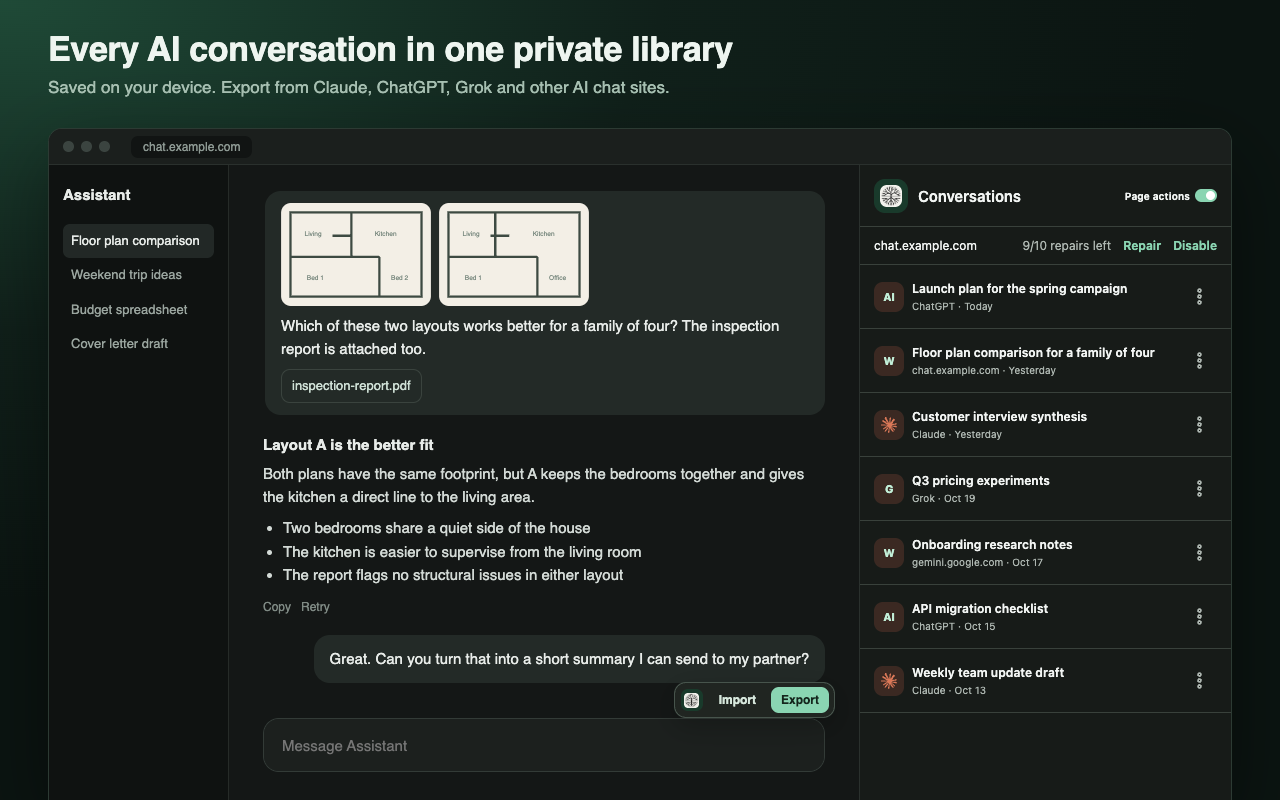
Move a conversation from one AI chat into another without copying and pasting. Save chats on your device, then bring the context into any new chat.
Coming soon to the Chrome Web Store.
What it does
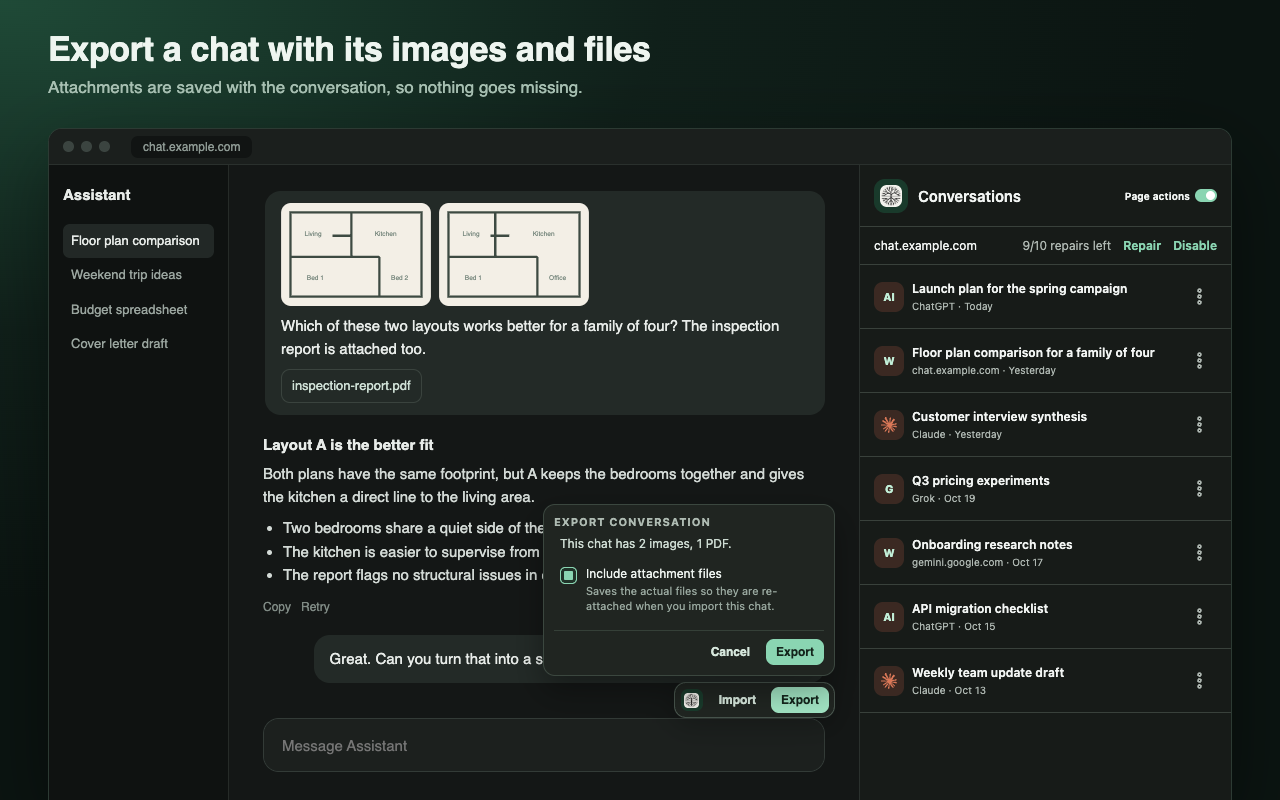
- Export. Save any conversation from Claude, ChatGPT or Grok with one click, including the images and PDFs you shared.
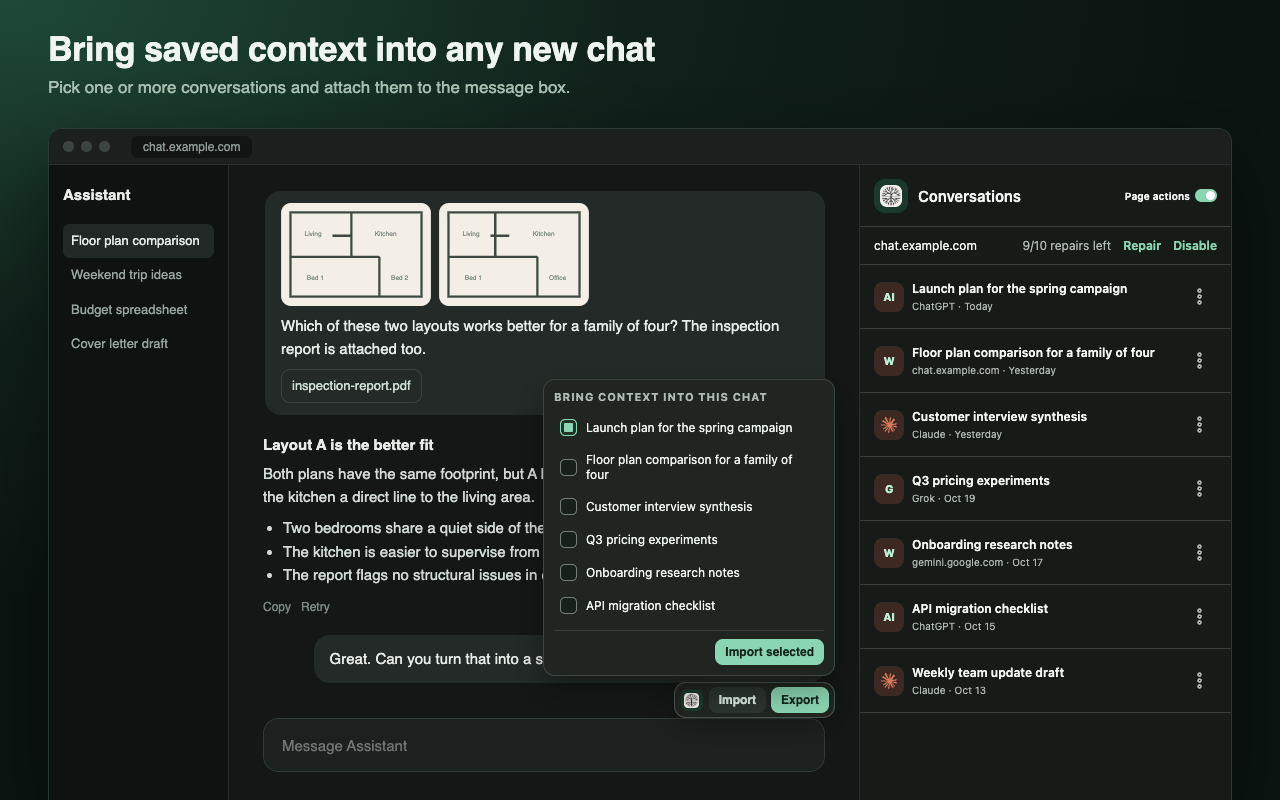
- Import. Attach one or more saved conversations to a new chat, together with their original files.
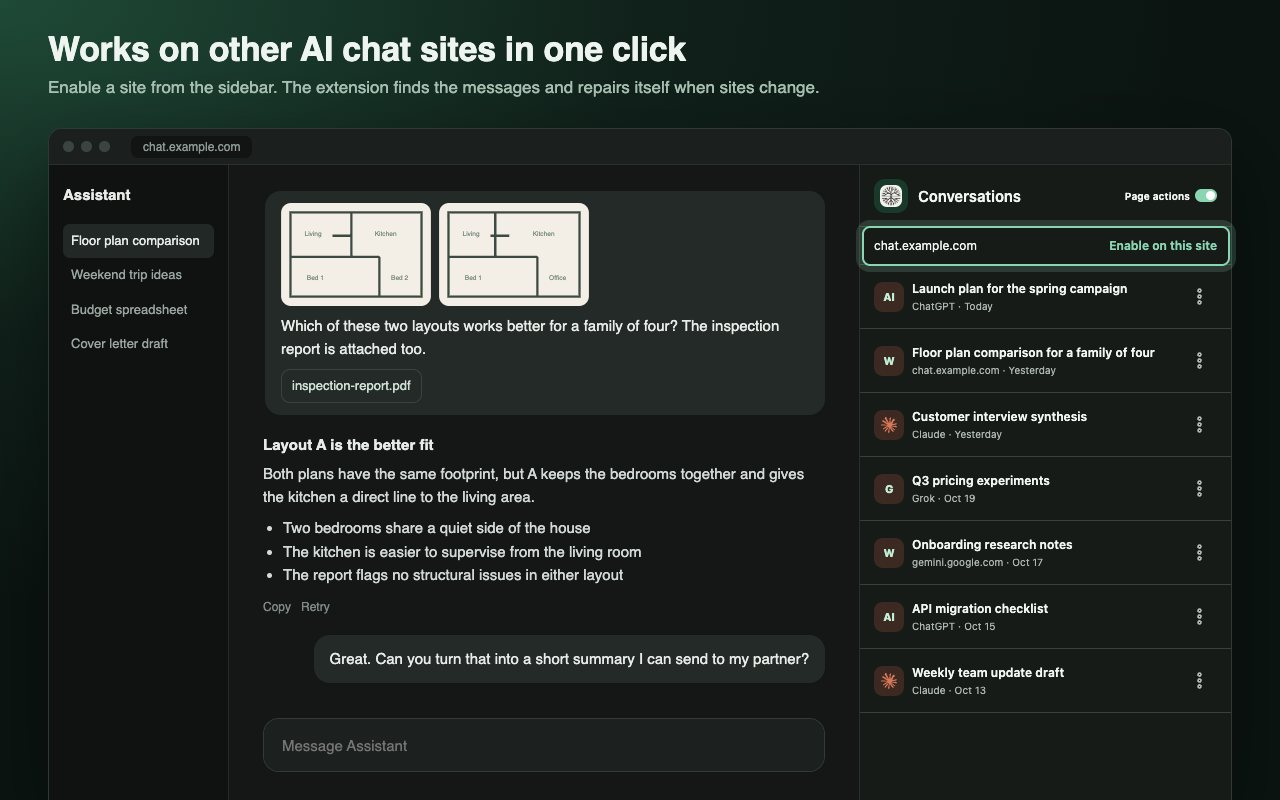
- Any AI chat site. Open the sidebar on another AI site and click Enable on this site. The extension finds the messages and the message box.
- Repairs itself. When a site changes its layout, the extension repairs itself. You get 10 repairs every 30 days, and fixes are shared, so most sites never need one.
- Private by design. Conversations are stored only on your device. Repairs send page structure, never what you wrote.
How to use it
- Open a conversation on Claude, ChatGPT, Grok or a site you enabled.
- Click Export in the small toolbar above the message box.
- In a new chat, click Import, pick the conversations you want, and click Import selected.
- Click the toolbar logo to open the sidebar, where you can browse, rename, download or delete saved conversations.
Privacy and support
Your conversations never leave your device unless you export a file yourself. Read the privacy policy, or visit support if something isn’t working.